
Blog
Fix Copilot Missing in Excel: Step-by-Step Solutions
nbetters · · 13 min read
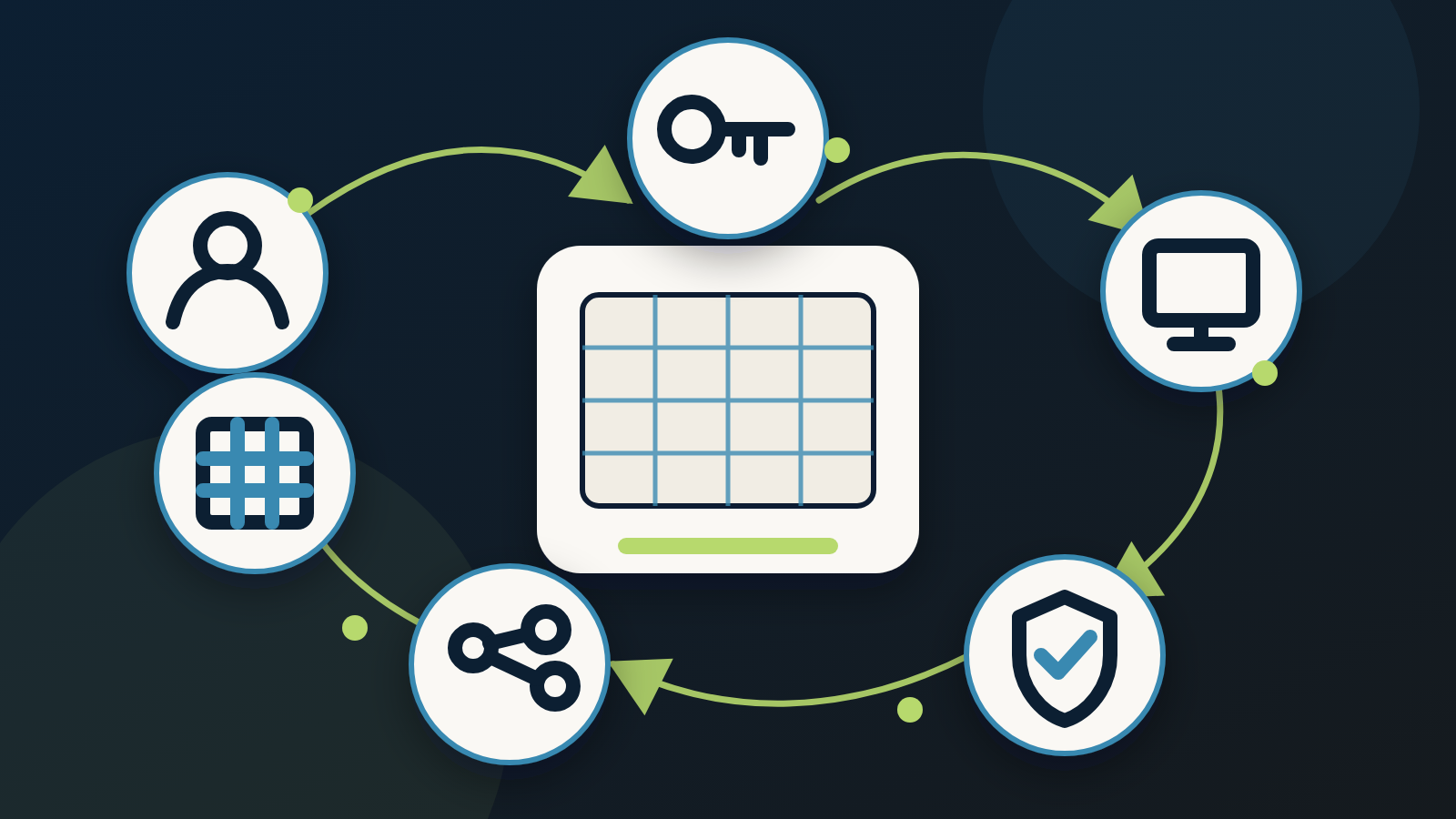
When Copilot is missing in Excel, the productive first move is a bounded, ordered diagnosis, not a reinstall or a broad tenant change.
When Copilot is missing in Excel, the productive first move is a bounded, ordered diagnosis, not a reinstall or a broad tenant change. Work through the readiness layers in sequence and assign each check to the person who owns it. This copilot not showing in excel implementation guide walks a Microsoft 365 team through that order: identity and entitlement, client build and update path, license propagation and restart, privacy controls, the Office Feature Updates task, network and WSS connectivity, and finally the separate workbook-state branch.
This guide is written for lean IT and business-application teams across Minnesota and the Twin Cities, where a single admin often covers licensing, endpoints, and support for an entire professional-services firm. If that describes your seat, a repeatable sequence you can run on a Monday morning is worth more than a folk remedy. A Minneapolis engineering practice and a Saint Paul accounting firm will pass through the same layers in the same order, even when their update rings, mailbox topology, and network paths differ. The goal here is a diagnosis you can hand off mid-ticket without losing the thread.
What a missing Copilot actually looks like
Describe the symptom precisely before you touch a setting, because each symptom routes to a different layer. The states you may observe include:
- No Copilot entry point anywhere on the Excel ribbon or Home tab for a specific user.
- A Copilot button that appears for one signed-in user on a shared machine and is absent for another.
- Copilot present in the Excel desktop app and absent in Excel for the web.
- Copilot available in one workbook and unavailable in another for the same user.
- A Copilot control that is visible but returns an error when the user invokes it.
Record which of these you see, on which client, and for which user. That single observation narrows the search from seven layers to one or two, and it gives whoever picks up the ticket next a factual starting point instead of a fresh guess. Screenshot the ribbon, note the client version, and capture the sign-in address; those three facts settle most of the early branching.
Prerequisites to confirm first
Before you troubleshoot a single desktop, confirm the baseline. Microsoft’s prerequisites for Microsoft 365 Copilot include an eligible Microsoft 365 license, a Microsoft Entra ID account, and a primary mailbox hosted in Exchange Online, as documented in the Microsoft 365 app and network requirements for Microsoft 365 Copilot. Experiences vary by license and tenant, so keep licensing language general and verify the live tenant rather than assuming one plan behaves like another.
Microsoft also directs administrators to prepare Copilot by configuring app update channels and assigning the required licenses, and current production guidance uses Current Channel or Monthly Enterprise Channel, per Set up Microsoft 365 Copilot and assign licenses. Confirm the tenant’s exact license and management plane before you change a channel or an assignment.
The Exchange Online mailbox prerequisite deserves a second look for firms that migrated recently or that still keep some mailboxes on-premises. When a user’s primary mailbox lives outside Exchange Online, that gap surfaces as a missing experience even when the license reads as assigned in the admin center. Confirm mailbox location as part of the baseline so it does not resurface three layers later.
Owners for this phase: the Microsoft 365 admin verifies license and identity; the end user confirms they are signed in with the correct work or school account.
Architecture and security boundaries
It helps to picture the readiness path as a small stack of independent layers, each of which can withhold Copilot on its own:
- Identity layer: the Microsoft Entra ID account and the work or school sign-in.
- Entitlement layer: the assigned Copilot license and the mailbox in Exchange Online.
- Client layer: the installed build and its update channel.
- Policy layer: connected-experience privacy settings and the Office Feature Updates task.
- Network layer: allowed Microsoft 365 endpoints and WSS connectivity.
- Workbook layer: the state of the individual file.
Reading the problem as a stack keeps the diagnosis honest. A green light at the license layer says nothing about the policy or network layer, so hold off on declaring victory after the first passing check. Each layer is worth confirming on its own evidence.
The stack also carries a security boundary worth stating for the executives who fund this work. Microsoft states that Copilot surfaces organizational data the user already has permission to access, and that prompts, responses, and Microsoft Graph data are not used to train the foundation models used by Microsoft 365 Copilot, per Data, Privacy, and Security for Microsoft 365 Copilot. That boundary is a design property, and it is separate from whether your tenant is correctly permissioned. Existing oversharing in SharePoint or OneDrive stays a governance concern that Copilot can make more visible, so pair enablement with an access review of what the affected users can already reach.
The ordered diagnosis
Run these checks in sequence. Each one names the operating symptom and the owner responsible for the fix. The order matters: an earlier layer can mask a later one, and repairing layer four while layer one is broken burns a support window for nothing.
1. Identity and entitlement
Start with who the user is and what they are entitled to. The user must sign in with a work or school account, and a personal account will surface no organizational Copilot experience, as noted in the setup guidance above. Confirm the account holds an eligible Copilot license and a mailbox in Exchange Online. For device-based licensing of Microsoft 365 Apps for enterprise, note a hard limit: Copilot is unsupported under that licensing mode, per the requirements page. Reserve that caveat for device-based licensing and keep it away from ordinary user-based licensing, where it does not apply.
Owner: Microsoft 365 admin, with the end user confirming the signed-in identity.
2. Client build and update path
Bring the client build and update path into the ordered diagnosis. Confirm the desktop app is current and on Current Channel or Monthly Enterprise Channel. When the channel needs to move, follow Microsoft’s current update-channel implementation guidance and verify the live tenant and management plane first. A firm that manages updates through Microsoft 365 Apps admin center policy will move a ring differently from one that relies on Intune or a third-party tool, so identify the management plane before you act, and change one ring at a time.
Owner: endpoint admin, coordinating with the Microsoft 365 admin on channel policy.
3. License propagation and restart
After a license is assigned, Copilot may take up to 24 hours to appear in some apps, and the user may need to restart or refresh the app. Confirm the file is editable rather than read-only. Set expectations with the user so the wait reads as normal propagation, and hold the line on the documented window instead of promising a shorter one. A restart clears one class of problem, so try it, then continue down the stack when the experience is still absent.
Owner: end user restarts and confirms the file state; Microsoft 365 admin confirms the assignment timestamp.
4. Privacy and connected-experience controls
Privacy settings can suppress Copilot even when licensing is correct. Microsoft states that Microsoft 365 Apps privacy settings can affect Copilot availability, and turning off connected experiences that analyze content makes Copilot features unavailable in Excel and other named apps, per the privacy documentation. In a managed tenant, that setting is often controlled centrally, so route it to the policy owner and let that owner adjust managed policy. Keep an end user out of the position of overriding an organizational setting.
Owner: privacy and security owner, who controls managed connected-experience policy.
5. Office Feature Updates task
The Office Feature Updates task is required for core Copilot experiences in Excel and the other named apps, per the requirements page. When a management tool or a hardened baseline disables that task, Copilot features stay absent even on a current build. Confirm the task is present and enabled before you suspect the network layer, because a disabled task looks identical to a network failure from the user’s chair.
Owner: endpoint admin.
6. Network and WSS connectivity
Copilot depends on allowed Microsoft 365 endpoints and full WSS connectivity to .cloud.microsoft and .office.com. Microsoft notes that blocked WSS, TLS inspection, or aggressive proxy timeouts can cause failures. Open the required paths with bounded, reviewed changes, and keep security review in place so the fix stays auditable. For a firm running a next-generation firewall with deep packet inspection, the WSS path is the layer most worth confirming directly with the network owner and a packet capture.
Owner: network owner, with security review.
7. The workbook-state branch
Once the Copilot experience is present in Excel for the user in general, a single workbook that still refuses Copilot is a distinct problem. Diagnose the missing experience first, then send a present-but-unusable workbook to Microsoft’s Copilot in Excel FAQ, which separates a missing button from workbook-specific unsupported states. Keep those workbook conditions out of the main button checklist so the two problems stay untangled.
For a client-specific missing control, Microsoft’s support article on how to find and enable a missing Copilot button gives current per-client steps.
Owner: end user with the support desk, escalating to the Microsoft 365 admin when the FAQ points back to entitlement.
The web client exception
Copilot in Excel Online carries one extra requirement worth isolating: it requires third-party cookies, per the requirements page. Apply that check to web clients only, and leave the desktop app out of it. When a user sees Copilot on the desktop and misses it in the browser, start with the browser cookie setting before you re-run the full sequence. That one branch saves a support session that would otherwise re-check layers that already passed on the desktop.
Roles and ownership at a glance
A missing-Copilot ticket moves faster when each layer has a named owner instead of a shared queue. For a lean Twin Cities firm, the same person may wear more than one hat, and writing the hats down still helps:
- Microsoft 365 admin: license assignment, identity, the Exchange Online mailbox, and assignment timestamps.
- Endpoint admin: client build, update channel, and the Office Feature Updates task.
- Privacy and security owner: connected-experience policy and the access review behind the permission boundary.
- Network owner: allowed endpoints and WSS connectivity, with security review on any change.
- End user: signed-in identity, restart and refresh, and file editability.
- Executive sponsor: the workflow the rollout is meant to improve and the review date that judges it.
When one person holds several of these roles, keep the checklist organized by layer rather than by person so no step falls through the gap between two hats.
Validation
Confirm the repair with layered evidence rather than a single screen:
- The end user opens an editable workbook in the current desktop client, signed in with the work or school account, and both sees and invokes the Copilot experience.
- The Microsoft 365 admin confirms the license assignment and its timestamp.
- The admin checks the Microsoft 365 Copilot readiness report, which identifies technically eligible users and eligible update-channel status. Treat it as lagged evidence: it can take up to 72 hours to become available and its usage data can lag by up to 72 hours, so read it as administrative confirmation and pair it with a live desktop check.
- Over the following days, the admin reviews the Microsoft 365 Copilot usage report, which distinguishes enabled users, active users, and active-user rate, and includes all Copilot in Excel features. Usage confirms availability; work quality and financial value need their own measurement.
Layering the evidence protects you from a false all-clear. A single user’s screen proves one seat works, the readiness report proves eligibility across the group, and the usage report shows whether the group actually adopts the experience over time. Read the three together, and the picture holds up when leadership asks whether the fix stuck.
Failure modes to check
- Right license, wrong account. The user is signed into a personal account. Correct the identity before anything else.
- Current license, stale client on the wrong channel. Move the channel through the documented path, then allow time for propagation.
- Everything provisioned, Copilot still absent. Check the connected-experiences privacy policy and the Office Feature Updates task before you touch the network.
- Desktop works, web does not. Suspect third-party cookies in the browser.
- One workbook fails while others succeed. Route it to the workbook-state branch and keep it off the main checklist.
- A blocked endpoint or TLS inspection path. Open the required WSS destinations under network and security review.
Each failure mode maps to one layer in the stack, which is the point of running the checks in order. When two symptoms appear together, treat the earlier layer as the prime suspect and confirm it before you move on.
Rollback for policy or channel changes
Any change you make to fix Copilot is also a change you may need to reverse. Before you move an update channel or adjust a connected-experiences policy, record the prior value and the management plane that set it. When a channel move destabilizes other apps, return the affected ring to its previous channel and confirm the client rehydrates. When a privacy-policy change reaches further than intended, restore the prior policy scope and re-evaluate a narrower change. Keep every change bounded to the smallest group that reproduces the problem so a rollback stays contained and easy to reason about.
Write the rollback step down at the moment you make the change, while the prior value is still in front of you. A rollback plan captured after the fact tends to be a reconstruction, and a reconstruction is where mistakes enter.
Operational checklist
- Confirm eligible license, Entra ID account, and Exchange Online mailbox.
- Confirm the user signs in with a work or school account and the file is editable.
- Confirm the desktop client is current on Current Channel or Monthly Enterprise Channel.
- Allow up to 24 hours after assignment, then restart or refresh the app.
- Verify the connected-experiences privacy policy with the policy owner.
- Verify the Office Feature Updates task is enabled.
- Verify allowed endpoints and WSS connectivity under network and security review.
- For the web client, verify third-party cookies.
- Route single-workbook failures to the Copilot in Excel FAQ.
- Validate with the user experience first, then the readiness and usage reports as lagged evidence.
Frequently asked questions
We assigned the license this morning and Copilot is still missing. Is something broken? Possibly nothing yet. After assignment, Copilot may take up to 24 hours to appear in some apps, and the user may need to restart or refresh. Confirm the file is editable, wait out the propagation window, and move down the stack only when the experience is still absent.
Copilot shows on the desktop but is missing in Excel in the browser. Why? Excel Online has an extra requirement: it needs third-party cookies. Check the browser cookie setting for the web client, and leave the desktop configuration alone since it already works.
Licenses look correct, yet a whole team sees no Copilot. What policy could hide it? Two policy-layer settings are worth confirming: the connected-experiences privacy setting, which can make Copilot features unavailable when experiences that analyze content are turned off, and the Office Feature Updates task, which is required for core Copilot experiences. Route both to the owner who controls managed policy.
Will Copilot let people see data they should not? Copilot surfaces organizational data the user already has permission to access, and Microsoft says prompts, responses, and Microsoft Graph data are not used to train the foundation models used by Microsoft 365 Copilot. That boundary is separate from whether your tenant is permissioned correctly, so pair the rollout with an access review of the sites and files the affected users can already reach.
How do we prove the fix worked beyond one screenshot? Confirm the user experience first, then use the readiness report to see eligible users and update-channel status, and the usage report to watch enabled and active users over time. Read both as lagged administrative evidence and keep a live desktop check alongside them.
Copilot works everywhere except one workbook. Where does that go? That is the workbook-state branch. Once the general experience is present for the user, a single stubborn file belongs with the Copilot in Excel FAQ, which separates a missing button from workbook-specific unsupported states.
Does moving the update channel risk breaking other apps? It can, which is why the channel move belongs to the endpoint admin and comes with a rollback note. Record the prior channel and management plane before you move a ring, scope the change to a small group, and return the ring to its previous channel when other apps destabilize.
Is a full reinstall of Office a reasonable first step? A reinstall is a heavy opening move that touches many layers at once and hides which one was at fault. Work the stack in order so the fix stays explainable and repeatable, and reserve a reinstall for a genuinely corrupted client after the ordered checks come back clean.
Where this fits, and where we can help
For a phased rollout beyond the fix, Microsoft’s setup guidance uses pilot, deploy, and operate phases, starting with a smaller early-adopter group and continuing with usage and adoption monitoring. A pilot earns its keep when you give it a named workflow owner, a baseline, and a review date; absent those, it produces activity rather than evidence.
Betters Agency is a Microsoft-focused Minnesota consultancy, and we provide paid implementation and advisory services; that is our commercial interest, stated plainly. If Copilot in Excel is stalling one costly manual workflow in your firm, that is the kind of bounded problem we scope with a Twin Cities IT lead and an executive sponsor at the table. For the investment and governance view of the same issue, read our companion piece on the business value of Copilot not showing in Excel, and for platform direction, our Microsoft versus alternatives perspective.
If you want help scoping that stalled workflow, Review a Workflow.